The multiview features on Apple TV 4K work similarly for all sports. However, because MLB baseball is a lot more limited in the number of games/streams available, the method of access is slightly different there. In general, you’ll need to select one stream you’ll want in the grouping and the multiview options will appear in the playback controls or in-stream menu. Selecting those will give you the ability to build your multiview from a menu of currently available games and shows. Once again, you’ll be able to watch up to four streams simultaneously — with the exception of baseball.
When you’re watching an MLB game, a multiview icon will appear on the player controls beside the options for subtitles, alternate audio feeds and picture-in-picture (PiP). Because Apple TV only broadcasts a maximum of two MLB games at once, there will only be three options to build a multiview feed: the two games and Apple’s MLB Big Inning studio show.
MLS fans have the ability to watch up to four games in multiview, or up to three games and Apple TV’s MLS 360 whiparound show. The studio show offers live look-ins at in-progress games, real-time analysis and ongoing discussions of all the day’s action. To set up your MLS multiview, start by watching any match. You’ll see the multiview icon in the playback controls where you can then browse the available live games and shows.
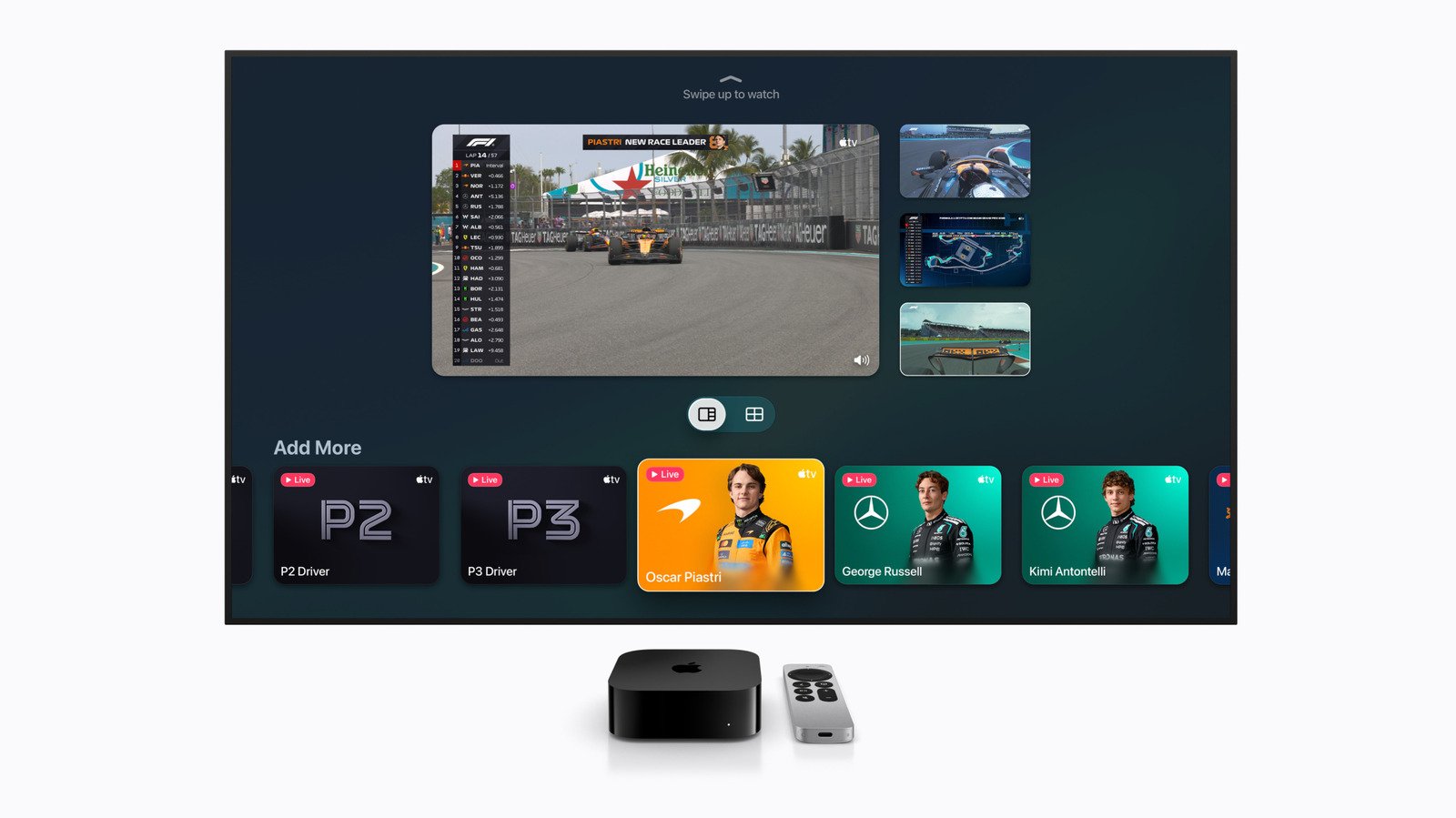
Formula 1 may be the most recent addition to the Apple TV sports lineup, but the racing series also has the most unique multiview options. Since Apple has partnered with F1, Apple TV subscribers get an F1 TV Premium subscription for this season. However, a lot of what’s included with that access is available in the Apple TV app — including the multiview selection. Once you pick your main feed, the multiview option shows up in the in-stream menu just below the main playback view. You can make it appear by swiping down on the Apple TV 4K remote.
In addition to the main race feed, you can create a multiview with a driver tracker, telemetry chart (live timing) and dedicated cameras for P1, P2 and P3. You can also choose from the driver’s onboard cameras for each car. The Apple TV app provides some pre-made multiview recipes, but you have the ability to create an entirely custom setup as you see fit. Lastly, Apple gives race fans the option of the Sky Sports feed with its commentary team if you prefer that coverage over the F1 TV crew that Apple TV’s main broadcast uses.
For all three sports, you can choose to highlight each of the streams in multiview by swiping over from box to box. Doing so pipes in the audio from that stream although the video from the others will always be visible so long as multiview is active. If you want to watch one of the feeds in your multiview on its own, simply click to select it.
In addition to multiview, the Apple TV 4K also supports picture-in-picture (PiP). This allows you to keep a game or race minimized in the corner of your screen while you browse other apps and menus on the streaming box. The PiP option is also available in the playback controls once you’ve selected a game, race or show. And unlike multiview, the feature works with anything you’re watching — even workouts in the Fitness app.