
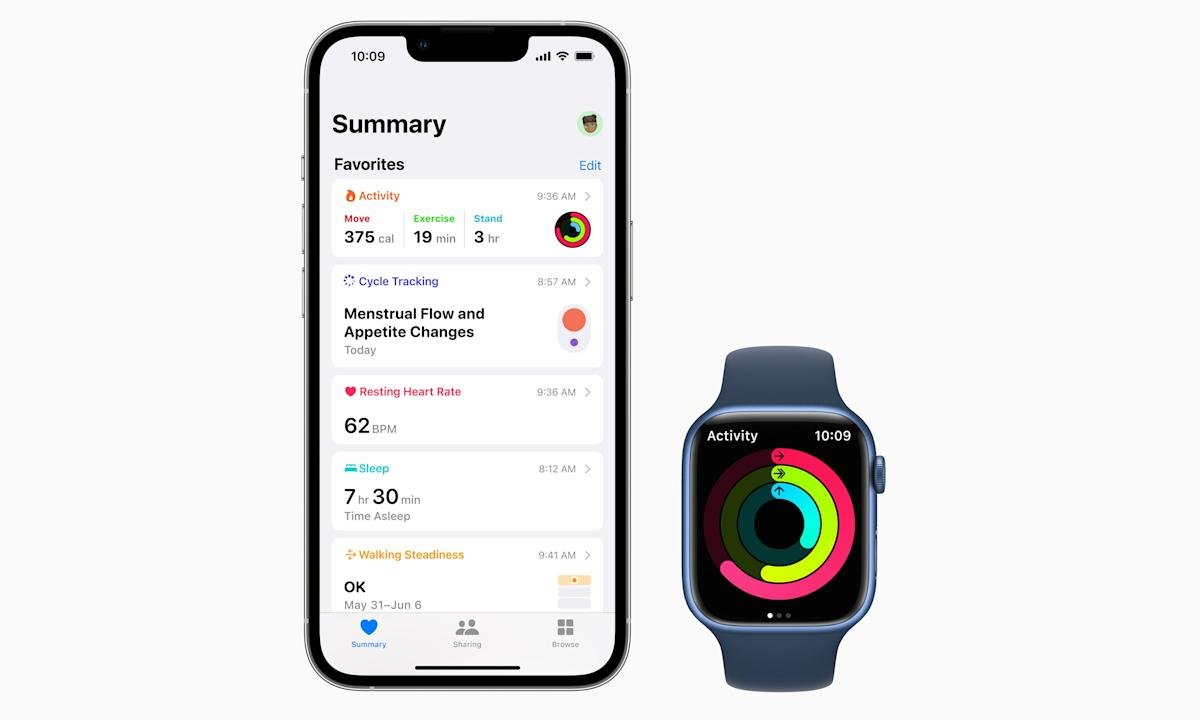
Apple Health brings sleep tracking, scheduling and long-term analysis into one place, with your iPhone acting as the hub and the Apple Watch doing the overnight monitoring. Once everything is set up, Apple Health can show how long you slept each night, how consistent your sleep schedule is and how much time you spend in different sleep stages. Here is how to get started, track your sleep and review your data.
Sleep tracking in Apple Health relies on two things: You need to set up Sleep in the Health app on your iPhone, and you need a compatible Apple Watch to wear to bed. While you can set sleep schedules without a watch, detailed sleep data — including sleep stages — requires an Apple Watch.
How to set up Sleep in Apple Health
Sleep tracking is available on all watchOS 8 (or later) models and setup starts in the Health app on your iPhone. Open Health, tap Browse and then tap Sleep. If this is your first time setting it up, you will see an option to get started. Apple Health will guide you through choosing a sleep goal, setting a bedtime and wake-up time and deciding whether you want one sleep schedule for every day or different schedules for weekdays and weekends.
During setup, you can also enable sleep reminders and a wind-down period. Wind Down reduces distractions before bedtime by activating features like Focus mode and dimming notifications at a set time before sleep. These settings are optional but they help keep your schedule consistent, which improves the quality of the data Apple Health collects over time.
Once Sleep is configured, Apple Health automatically syncs those settings to your Apple Watch. You can adjust your sleep schedule later by returning to the Sleep section in Health and tapping Full Schedule and Options. Any changes you make here update on both your iPhone and Apple Watch.
How to prepare your Apple Watch for sleep tracking
To track sleep, your Apple Watch needs to be worn overnight and have enough battery to last until morning. If the battery drops below 30 percent before bedtime, your watch will prompt you to charge it first. Sleep tracking also relies on Sleep Focus which activates automatically based on your sleep schedule. Once Sleep Focus has been set, open the Settings app on your Apple Watch, tap Sleep and ensure that Track Sleep with Apple Watch is turned on. With both features enabled your watch can monitor sleep automatically without any manual start or stop each night.
Comfort matters when wearing a watch to bed, so many people prefer a softer band for sleep. As long as the watch fits securely and stays in contact with your wrist, it can track sleep without issue.

The Apple Watch Series 11 on a person’s wrist, showing a ring with three segmented arcs encircling a Sleep Score of 53 and the description “OK” in the bottom left. (Cherlynn Low for Engadget)
How Apple Watch tracks your sleep
When Sleep Focus is active, the Apple Watch uses its accelerometer and heart rate sensor to detect when you are asleep and awake. Newer models also track sleep stages, including time spent in REM, core and deep sleep. Apple Health combines this information into a single overnight record that appears in the Sleep section the next morning.
You do not need to start or stop sleep tracking manually. As long as you follow your sleep schedule or enable Sleep Focus before bed, the Apple Watch automatically does everything else. If you wake up early or go to bed later than planned, Apple Health adjusts the data based on actual movement and heart rate rather than just your scheduled times. In addition, some Apple Watch models (SE 3 or higher) support on-device Siri, enabling you to ask questions such as “how much sleep did I have last night?” for a more immediate response.
How to view your sleep data in Apple Health
To see your sleep data, open the Health app on your iPhone and tap Browse, then Sleep. At the top of the screen, you will see a chart showing how long you slept the previous night. Tapping this chart reveals a detailed breakdown, including time asleep, time in bed and sleep stages (if available).
Scrolling down shows trends over longer periods. You can switch between daily, weekly, monthly and six-month views to see patterns in your sleep duration and consistency. Apple Health also highlights whether you are meeting your sleep goal and how regular your schedule has been.
Under Highlights, Apple Health may surface insights such as changes in average sleep time, variations in sleep stages or your nightly sleep score. Sleep scores provide a simplified summary of how well you slept, and is based on factors such as duration, consistency and restfulness. These summaries update automatically as more data is collected over time.
Understanding sleep stages and trends
If your Apple Watch supports sleep stages, Apple Health displays how much time you spent in REM, core and deep sleep. These stages give context to your overall sleep quality, though Apple emphasizes trends over individual nights. Occasional short nights or unusual stage distributions are normal.
Over time, Apple Health makes it easier to spot patterns. Consistently short sleep durations, irregular bedtimes or frequent awakenings become clearer when viewing weekly or monthly summaries. This makes the Sleep section useful not just for nightly check-ins but for understanding longer-term habits.
Editing and managing sleep data
Apple Health allows you to add or edit sleep data if needed manually. In the Sleep section, tap Add Data to log sleep that was not recorded automatically. This can be useful if you forget to wear your watch or take a nap without it.
You can also manage which devices contribute sleep data by scrolling to the bottom of the Sleep screen and tapping Data Sources and Access. This is helpful if you use third-party sleep apps or multiple devices.
Once set up, sleep tracking in Apple Health runs quietly in the background. With a consistent schedule and a charged Apple Watch, your sleep data builds into a clear picture of your nightly rest, all stored securely within Apple’s health platform.